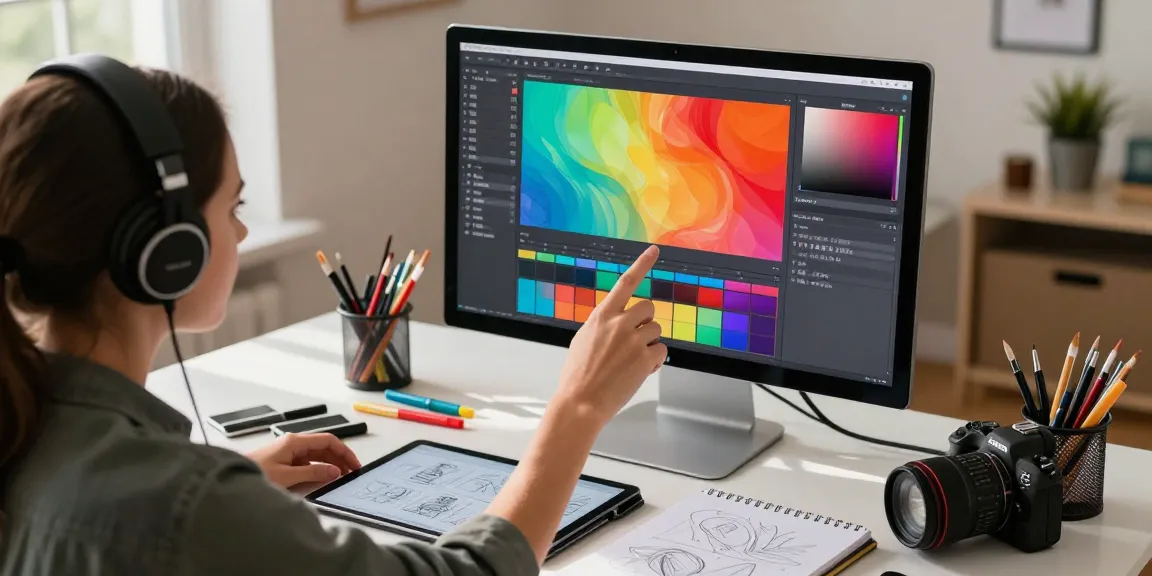
Understanding the Paint-Bucket Tool
The paint-bucket tool is a staple in the arsenal of graphic designers, photographers, and digital artists alike. This powerful feature allows users to fill specific areas of an image with a chosen color, providing a quick and effective means of enhancing visuals. For anyone looking to bring their creative visions to life, understanding how this tool works is essential. Whether you’re touching up a photo, creating a graphic from scratch, or making memes, mastering the paint-bucket tool can significantly enhance your workflow and efficiency.
What is the Paint-Bucket Tool?
The paint-bucket tool, often represented by an icon of a paint bucket tipping over, is designed for filling a selected area with color. This area is typically defined by the connected pixels of the same color that you click on. The tool is widely utilized in various graphic editing software, providing users with flexibility and speed. This makes it particularly useful for tasks that require quick solid color fills, such as creating backgrounds or modifying artwork.
How Does the Paint-Bucket Tool Work?
At its core, the paint-bucket tool operates by detecting similar colors in the pixel area you click on. Once you select a color from the color picker, the tool fills all adjacent pixels that match or closely resemble the clicked color based on specific tolerance settings. This means that if you click on a blue area in your image, the tool will fill all connected blue pixels with your selected color, streamlining the editing process.
Benefits of Using the Paint-Bucket Tool in Digital Editing
- Efficiency: The paint-bucket tool allows for rapid filling of large color areas, saving time and enhancing productivity.
- Precision: With adjustable tolerance levels, users can control how closely matching colors are filled, perfect for detailed work.
- User-Friendly: The intuitive interface makes it accessible for both beginners and experienced users.
- Versatile: Ideal for various applications, including graphic design, web development, and photo editing.
How to Effectively Use the Paint-Bucket Tool
Step-by-Step Guide to Using the Paint-Bucket Tool
Using the paint-bucket tool is simple. Follow these steps to get started:
- Upload Your Image: Drag and drop your image into the interface or click to browse for your file.
- Select the Paint-Bucket Tool: Locate the paint-bucket icon within the tools menu.
- Choose Your Fill Color: Use the color picker to select your desired hue.
- Click to Fill: Click on the area of the image you wish to fill. The tool will immediately apply the selected color.
- Adjust Tolerance: If necessary, modify the tolerance settings to control the spread of the fill.
- Undo if Needed: If you make a mistake, simply use the undo option (Ctrl+Z or the undo button).
Advanced Techniques for Precise Color Filling
While the basic use of the paint-bucket tool is straightforward, advanced techniques can enhance your results:
- Layering: Utilize layers to keep your original image intact while applying fills. This allows for more flexibility in adjustments.
- Gradient Fills: Combine the paint-bucket tool with gradient effects for stunning color transitions.
- Masking: Use masking techniques to fill colors in specific areas without affecting adjacent regions.
Common Mistakes and How to Avoid Them
Even experienced users can make mistakes when utilizing the paint-bucket tool. Here are some common pitfalls and how to avoid them:
- Incorrect Tolerance Settings: Always check the tolerance level before filling, as too high a tolerance can fill unintended areas.
- Not Zooming In: Zooming in on your image helps in selecting specific areas without affecting nearby pixels.
- Forgetting to Save: Always remember to save your work regularly to avoid losing progress.
Optimizing Color Selection with the Paint-Bucket Tool
Understanding Fill Tolerance and Its Impact
Fill tolerance defines how similar nearby pixels must be to be included in the fill operation. A higher tolerance means that a broader range of colors will be filled, while a lower tolerance will limit the fill to colors very close to the selected pixel. Understanding this will help you achieve more precise results and avoid unwanted fills.
Choosing the Right Colors for Your Project
When selecting colors, consider the overall theme and message of your project. Tools like color theory can guide you in choosing complementary or contrasting colors that enhance your design. Always preview your selections to ensure they meet your creative vision.
Tips for Enhancing Color Accuracy
To ensure accurate color fills:
- Use Color Samples: Sample colors from your original image to maintain consistency.
- Adjust Brightness and Saturation: Modify the color’s brightness or saturation within the color picker for better matches.
- Keep Color Psychology in Mind: Use colors that evoke the desired emotions for your audience.
Applications of the Paint-Bucket Tool in Various Industries
Graphic Design: Elevating Flat Designs
In graphic design, the paint-bucket tool streamlines the creation of flat designs. Designers can quickly fill background layers with solid colors that express brand identity or create visually striking visuals. This efficiency allows for rapid iteration, which is crucial in design industries where deadlines are often tight.
Illustration: Creating Stunning Artwork
Artists and illustrators utilize the paint-bucket tool to add depth and detail to their creations. By allowing for quick fills, it frees up time that can be devoted to more nuanced aspects of artwork, such as detailing and shading, thus enhancing the final product’s quality.
Web Development: Improving User Interface Design
In web development, the paint-bucket tool can be used to quickly fill UI elements with brand colors or to prototype layouts. Quick access to color filling allows developers to visualize changes in real time, making it easier to test and improve user interfaces.
Future Trends and Innovations in Paint-Bucket Tools
Emerging Features to Look Forward to in 2026
The future of the paint-bucket tool is promising, with many new features anticipated in the coming years. Developers are exploring enhancements like automatic color matching and AI-assisted fills that can intelligently identify the best colors based on context, which could revolutionize how we use color in editing.
Integration with AI and Machine Learning
As artificial intelligence continues to evolve, its integration with graphic design tools is likely to become more common. Future paint-bucket tools may offer features that predict color choices based on user behavior and project types, further simplifying the editing process.
The Evolution of Graphic Design Tools with Paint-Bucket Innovations
The evolution of graphic design tools has largely been shaped by user needs for efficiency and creativity. New innovations are expected to cater to these demands by allowing for more intuitive interactions, including touch interfaces and advanced color selection techniques.
Can I undo a fill?
Yes, you can easily undo a fill operation using the undo function (Ctrl+Z or the designated undo button). This feature ensures that you can make adjustments without the fear of permanently altering your design.
Is it free to use?
Absolutely! The paint-bucket tool is available for free through MagicPicPro, with no sign-up necessary, making it accessible to everyone from amateurs to professionals.
What formats does the paint-bucket support?
The paint-bucket tool supports various image formats, including JPG, PNG, WebP, and GIF, ensuring versatility across different projects and applications.
What types of images can be edited with this tool?
This tool is compatible with a wide range of image types, from simple graphics to detailed illustrations, allowing users to apply color fills in diverse contexts effectively.
How does it compare to other editing tools?
Compared to other editing tools, the paint-bucket tool offers unparalleled speed and simplicity. For more information, paint-bucket offers valuable insights. Its ease of use, coupled with powerful features such as tolerance adjustment and immediate application, make it a preferred choice among professionals.